
How to use GrantMe
GrantMe is a free way to find grants for Tennessee groups. This page shows you how to use it, one task at a time. You don't need an account to search.
Find grants for your group
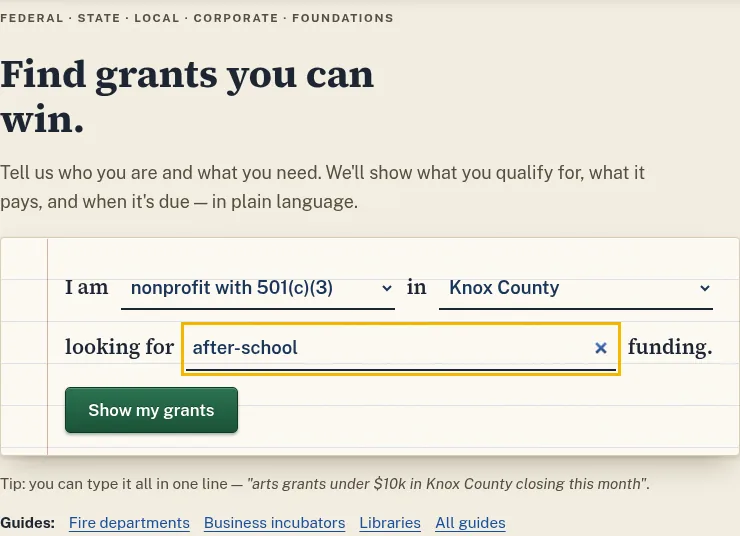
- Go to the home page.
- Pick what kind of group you are, like a nonprofit or a fire department.
- Pick your county. Some grants only pay for work in certain places.
- Type what the money is for, like “after-school” or “fire truck”. Then press “Show my grants”.
- Your results come in groups: grants you can apply for now, grants opening soon, and foundations to approach.
You can also use Find funding to search again, or search all grants with more filters.
Read a grant page
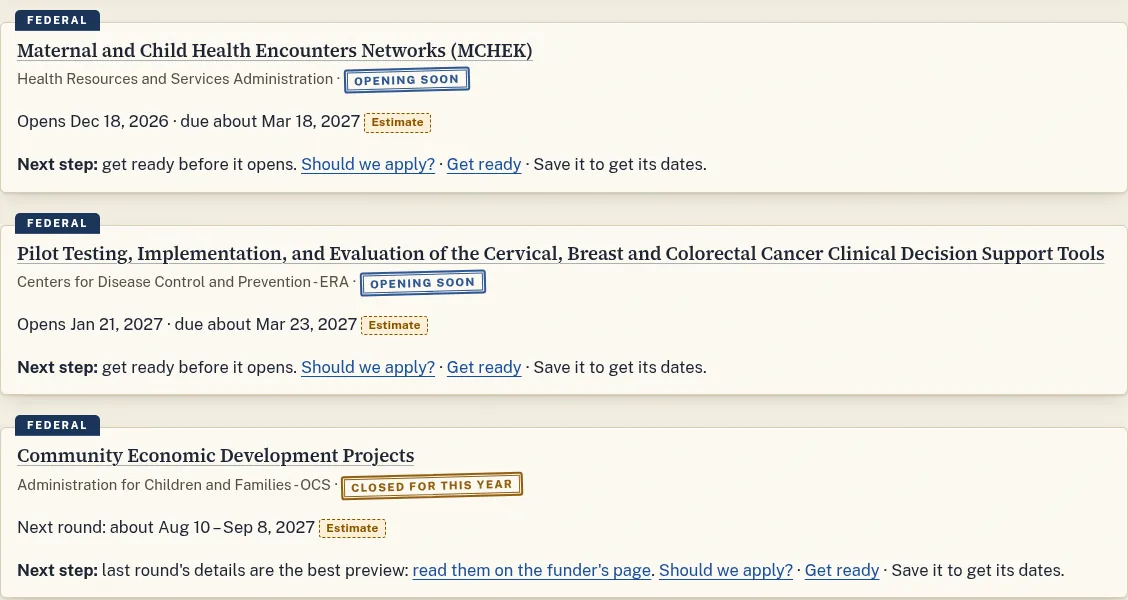
- Look at the status tag first. Open means you can apply now. Opening soon means you can get ready. Closed for this year means wait for the next round.
- A dotted Estimate tag means GrantMe worked out the date from past rounds. The funder has not confirmed it yet.
- An Unverified tag means no one has checked that fact on the funder's own page yet.
- Check “Who can apply” and “Where” in the key facts. If your group or place isn't listed, you probably can't apply.
- Check the match. It is money or help your group must add. Use the budget calculator to work out your share.
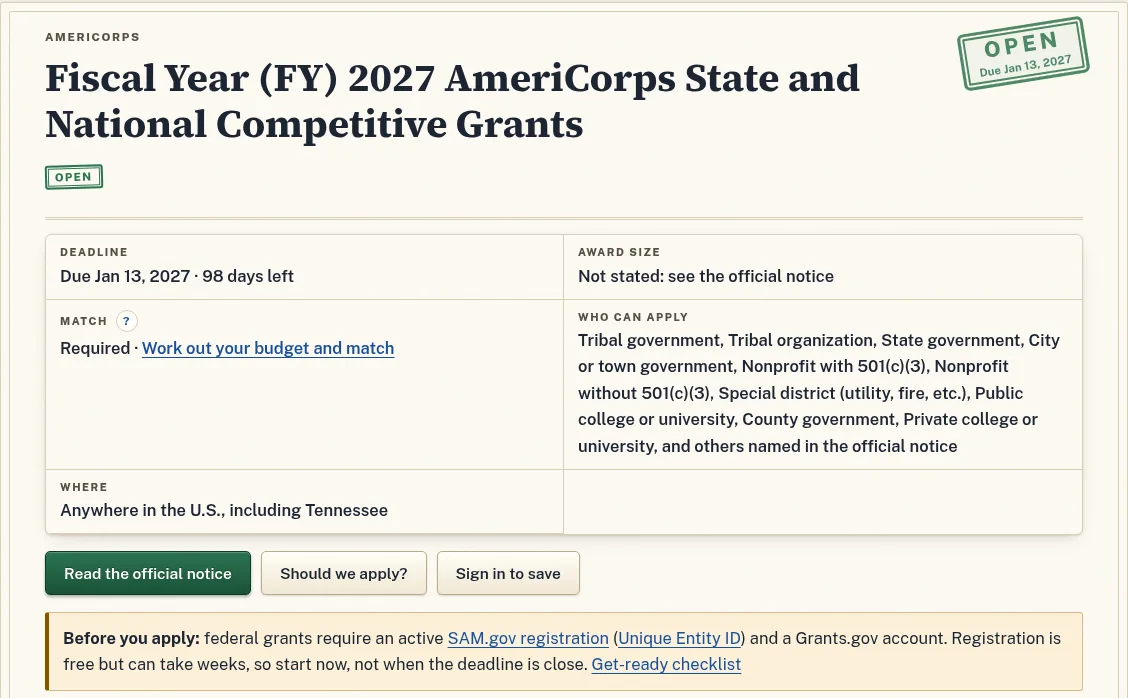
Always press “Read the official notice” before you apply. The funder's notice is the final word.
Decide whether to apply
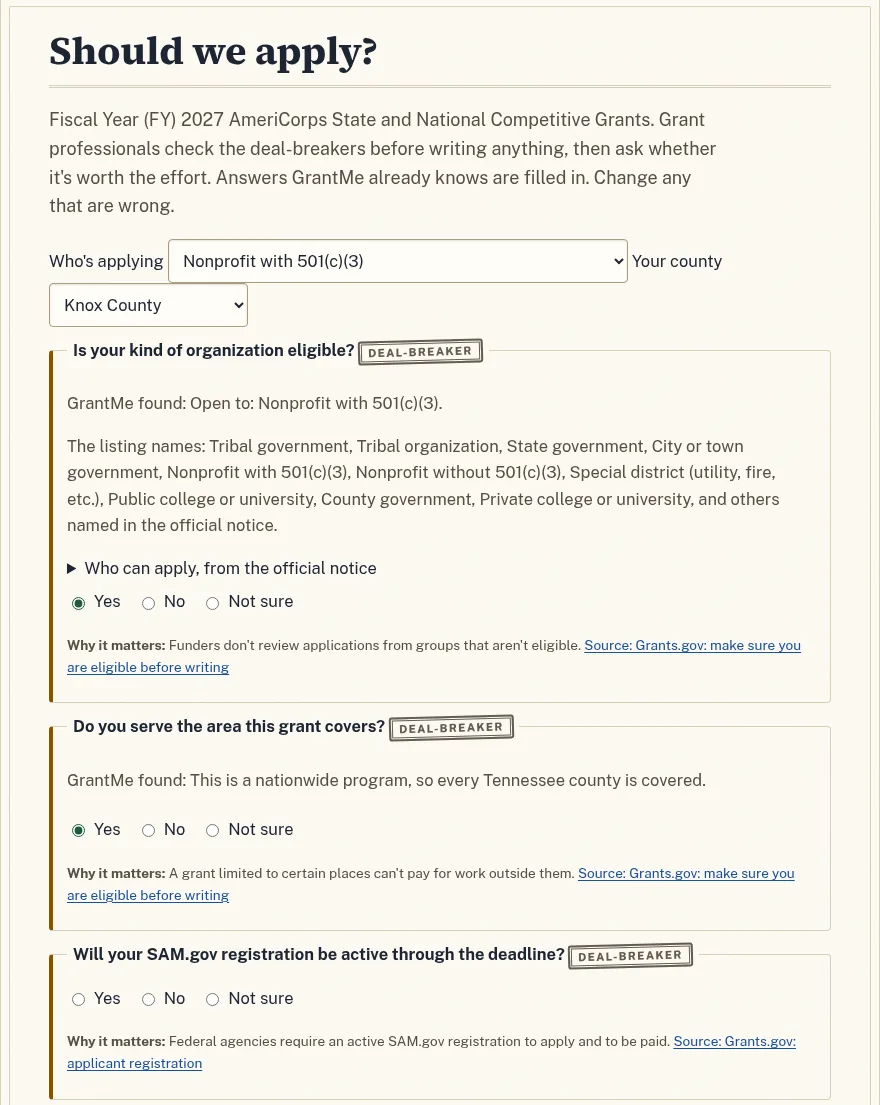
- On any grant, press “Should we apply?”.
- Answer each question with Yes, No or Not sure. GrantMe fills in what it already knows. Change anything that is wrong.
- Questions marked Deal-breaker matter most. One “No” there means you should not apply.
- Press “Get my answer”. If it says to find out first, look up those facts before you start writing.
Save a grant and keep track
- Sign in with Google. GrantMe keeps only your first name and an account number from Google.
- On a grant page, press “Save to My grants”.
- Open My grants. Each saved grant has its own page with an application checklist, dates and notes.
- Tick off checklist items as you finish them.
- Press “Get my private calendar link” to see your deadlines in Google, Outlook or Apple Calendar.
What you save is private to you and any teammates you invite. Read more in Your account and privacy.
Plan and write
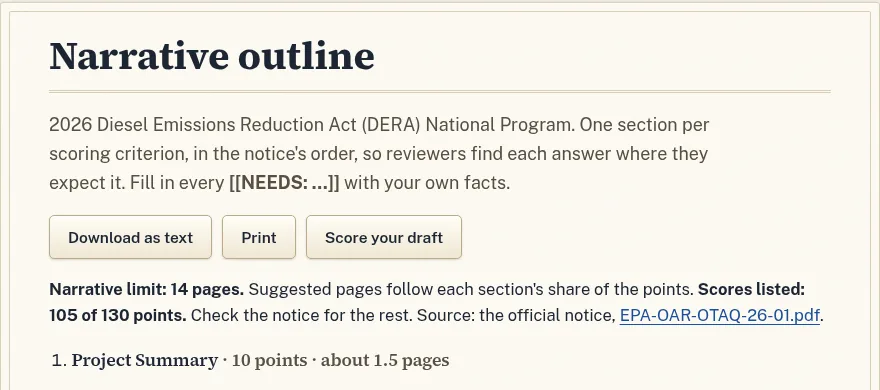
- Many federal grant pages list how applications are scored. Press “Build your narrative outline from these criteria”.
- The outline has one section for each scoring item, in the notice's order. Fill in every [[NEEDS: …]] with your own facts.
- When you have a draft, press “Score your draft”. Rate each part the way a reviewer would. Nothing you type there is saved.
- Read sample proposals that agencies posted. Use them to learn the shape, not to copy.
- For your need statement, use county facts. For partner letters, use the letter kit.
Find foundations
- Go to Funders. Search by what your group does, like “food pantry” or “library”.
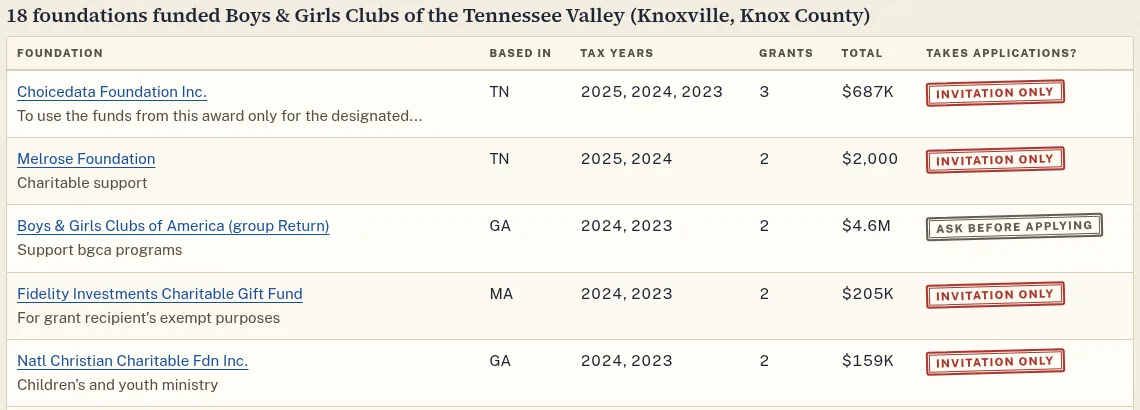
- Or use Who funded this group?. Type a Tennessee group that does work like yours, then pick it.
- You'll see every foundation that paid that group. Skip the ones marked Invitation only. They don't take applications.
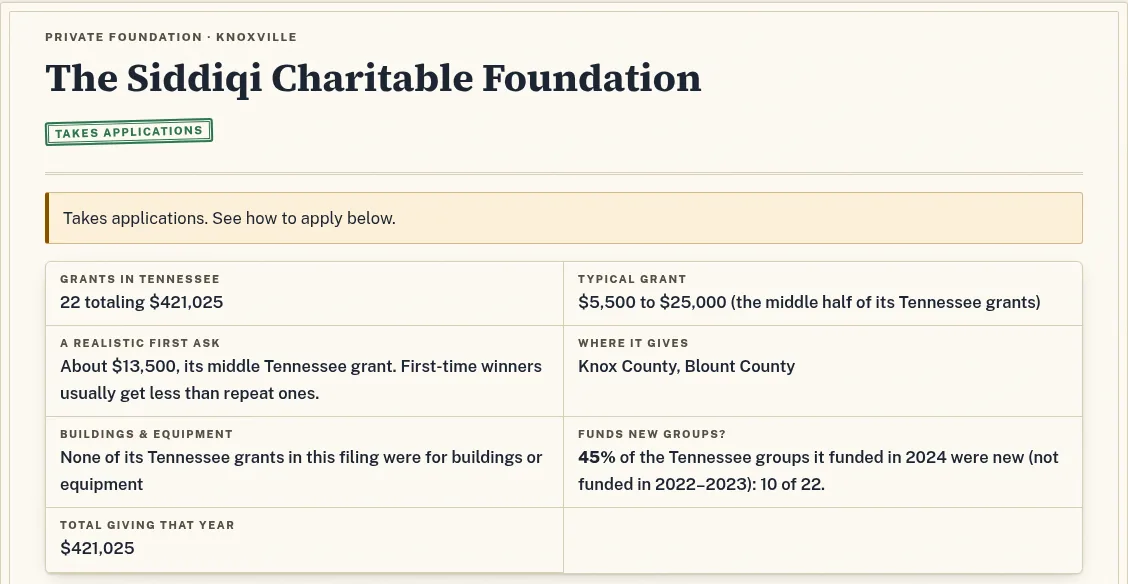
- Open a foundation's page. Read “How to apply” and “A realistic first ask”. First-time winners usually get less than repeat ones.
- If a foundation wants a short letter first, send a letter of inquiry before a full proposal.
Use a guide
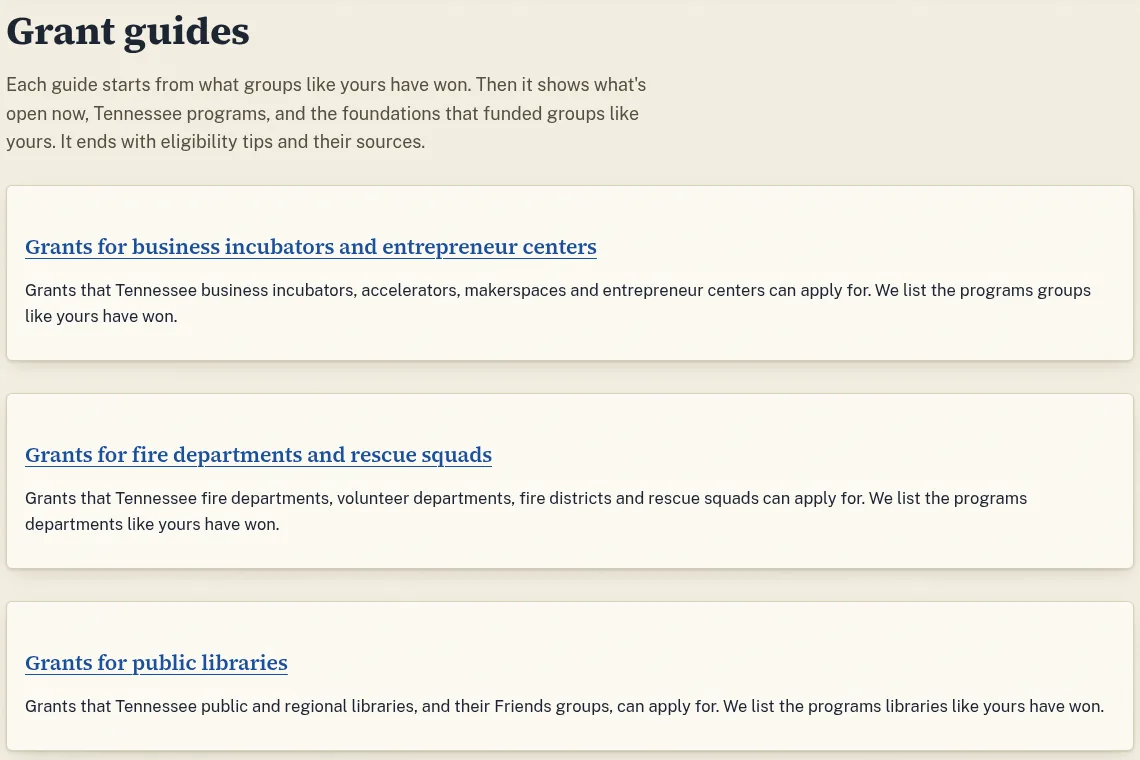
- Open Grant guides.
- Pick the guide for your kind of group, like fire departments or libraries.
- Each guide shows what groups like yours have won, what's open now, and tips on who can apply.
Before any application, read the grant-ready checklist. It covers SAM.gov, your tax status and other paperwork.
Hide grants that don't fit
- Sign in first.
- On a grant that isn't right for you, press “Not for us”.
- It drops out of your searches and your team's searches.
- Changed your mind? Open Hidden grants and press “Undo”.
Work as a team
- Open My grants, then go to your team.
- Make an invite link. Pick “can edit” for co-workers or “can view” for board members.
- Send the link. Each person signs in with their own Google account.
- Everyone then shares the same saved grants, dates, notes and answers.
Get new grants and deadlines
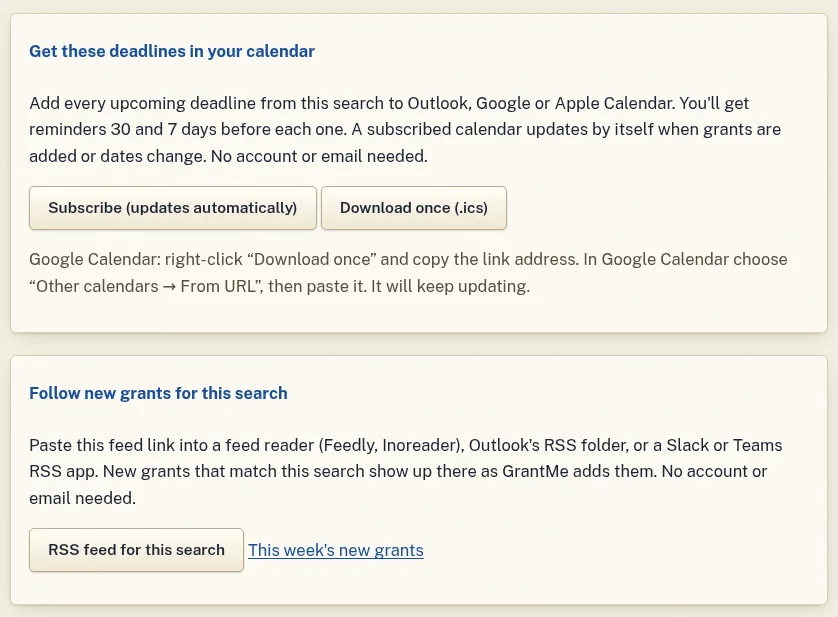
- Run a search. At the bottom of the results, open “Get these deadlines in your calendar”.
- Press “Subscribe” to add every deadline from that search to your calendar. It updates by itself.
- Open “Follow new grants for this search” to get an RSS feed. Paste it into a feed reader, Outlook, Slack or Teams.
- Or check New this week for the latest grants.
Download the data
- Get every published grant as a spreadsheet (CSV) or as JSON.
- Each row has the official source link and the date we last checked it.
- Developers can use the API at /api/v1/grants. It takes the same filters as search.
- You may reuse the data. Please credit GrantMe.
If something looks wrong
- Check the funder's official notice. It is the final word.
- At the bottom of a grant page, open “Something wrong on this page? Tell us”. We check every report against the source.
- Tell us about a missing grant on the suggest page.
- See what we've fixed in the corrections log.
- Look up any grant word in Grant words in plain English.
Real grants never charge you a fee to get money. If someone asks you to pay to “release” a grant, it's a scam.